Your Microsoft Technology Development and Consulting Experts - Operating since 2000

Location
Australia WideSydney, NSWMelbourne, VicBrisbane, QldPerth, WAAdelaide, SACanberra, ACTNorthern Rivers, NSWWollongong, NSWRichmond, VicDarwin, NT
emailconsult@officeexperts.com.au
Phone1300 102 810
Office experts logo
Contact Us
Long desk in an officeComputer code on a screen

VBA Macro Development

VBA Macro Development

Custom code for the jobs Office can't do alone.

Every desktop Microsoft Office application comes with a powerful built-in programming language called Visual Basic for Applications, or VBA. Whichever Office product your team works in, our highly experienced VBA programmers are ready to build the solution that takes your business to the next level.

Macros let us automate repetitive work, validate what your staff enter, and link your Office files to databases, websites and third-party products. VBA runs on the Office you already have, with no extra licence, hosting or software to buy.

From a simple recorded macro to a system that ties Excel, Word, Access and Outlook to your databases and APIs, we cover the full range. This page is your starting point for all of it.

  • 2000Established
  • 25+Consultants nationwide
  • AU-wideRemote and on-site
VBA by application

One language, every Office application.

Pick the application your team lives in. The same VBA skills apply across all of them, which is why one project can start in Excel, build a document in Word and finish with an email in Outlook.

Excel VBA: forms, reports and data pipelines

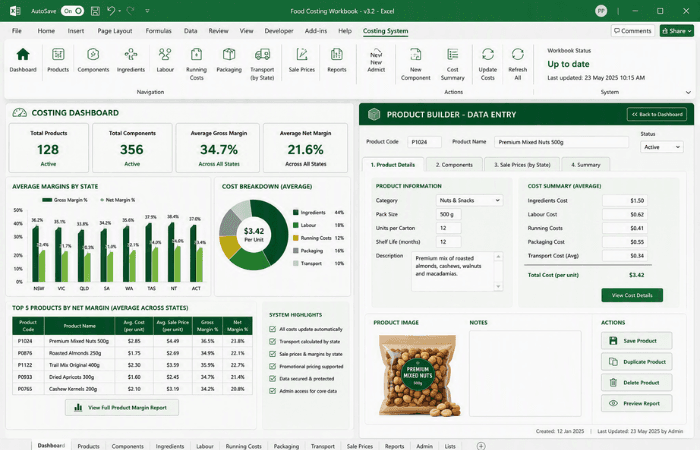
Excel is where most VBA starts and where it does the most work. We turn fragile, formula-heavy workbooks into tools your whole team can trust, with forms for data entry, one-click reporting and live connections to the systems your data comes from.

  • Data-entry forms with real-time validation
  • Automated reports, charts and pivot tables
  • Connections to SQL Server, SharePoint, Dataverse and web APIs
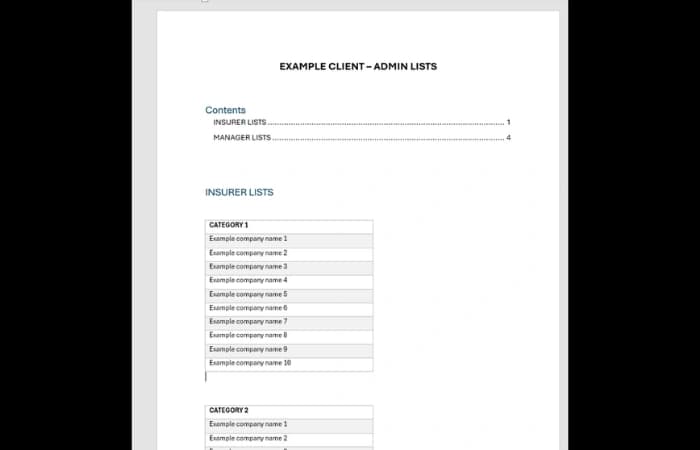
  • Locked-down workbooks with Admin-only data sheets
Word VBA: popup forms, ribbons and document builders

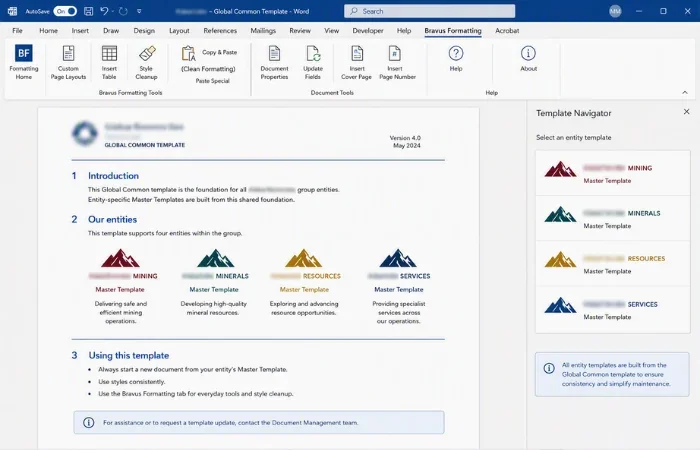
Word macros keep documents complete and on brand, whoever is typing. We build popup forms that fill a template for your staff, custom ribbon tabs that lock formatting down, and builders that assemble long reports from a library of approved content.

  • Popup forms that check mandatory fields
  • Custom Formatting tabs and clean paste macros
  • Document builders for long, repeating reports
  • Content controls, document protection and PDF output

Access VBA: the logic that makes a database work

In Access, VBA is what turns tables into a finished application: forms, navigation, validation, document generation and exports. We build and repair that code, and when the data outgrows Access we move it to SQL Server while keeping the front end your staff already know.

  • Forms, menus and business rules
  • Word and Excel documents generated from records
  • Emails with attachments sent from the database
  • Links to SQL Server and Azure back ends

PowerPoint VBA: presentations that build themselves

If the same presentation is rebuilt every month or quarter, a macro should be doing it. We generate slides from Excel or database data, apply your template and branding consistently, and handle the bulk edits nobody wants to do by hand.

  • Slides and charts built from Excel, Access or SQL data
  • Branding and layouts applied automatically
  • Bulk updates across many presentations
  • Export to PDF and distribution by email

Outlook VBA: email and calendar automation

Outlook macros can sort, file, reply to and report on email, or send personalised messages from data held in Excel or Access. One thing to plan for: VBA runs in classic Outlook and not in the new Outlook for Windows, so we design around that from the start.

  • Templated emails sent from Excel, Word or Access
  • Filing, flagging and follow-up helpers
  • Attachments from generated Word and PDF files
  • Power Automate, Graph or web add-in options for the new Outlook
What VBA can do

Automation built into Office, shaped around your process.

All Office products come with a macro recorder that captures a series of steps so you can repeat them. The recorder writes the VBA for you, but it is only the tip of the iceberg. These are the things we build once the recorder runs out of road.

Applications working together

Start in one application, finish in another.

VBA can drive one Office application from inside another. That is how a database record becomes a finished Word proposal, a spreadsheet becomes a branded presentation, or a form becomes an email with the right attachment.

  1. 01

    Capture

    A form in Excel or Access collects the details and checks them before anything is created.

  2. 02

    Build

    VBA opens your Word template or PowerPoint deck and fills it from the data, using your approved styles.

  3. 03

    Convert

    The finished file is saved as a PDF and filed in the right folder with the right name.

  4. 04

    Send

    Outlook creates the email, attaches the file and sends it, or leaves it open for a final check.

Choosing the right tool

VBA, Office Scripts, Python or Power Automate?

Microsoft now offers several ways to automate Office, and VBA is still the right answer for a lot of jobs. It isn't the right answer for all of them. As part of our business analysis, we tell you which one fits, even when it isn't VBA.

Office Scripts

Runs in

Excel on the web, Windows and Mac, with an enterprise or education licence.

Best for

Cloud automation of Excel files in SharePoint or OneDrive, especially when Power Automate triggers it.

Watch for

Excel only. There are no Excel events, so scripts run only when a person or a flow starts them, and they cannot reach the machine.

Python in Excel

Runs in

Inside worksheet cells, with the calculations run in the Microsoft cloud.

Best for

Statistics, data analysis and charting with Python libraries, using data already in the workbook.

Watch for

It analyses data in cells. It does not drive the Office interface or other applications.

Power Automate

Runs in

Unattended in the cloud, across Microsoft 365 and many other services.

Best for

Scheduled and event-driven processes where nobody is at the keyboard, including running Office Scripts.

Watch for

There is no VBA connector, so a desktop macro cannot be triggered from a flow.

Most real projects use more than one: a VBA form on the desktop, a Power Automate flow overnight, an Office Script in between.

We design the mix around how your team works, and you can read more about business process automation. Microsoft's features, names and licensing change often, so we check the current documentation before we recommend anything.

VBA and AI

AI can write a macro. Someone still has to own it.

Copilot, ChatGPT and Claude can all write VBA, and our developers use them too. They are quick at first drafts. The trouble starts when code written in isolation is dropped into a workbook, template or database it knows nothing about.

A macro can look right and still overwrite the wrong range, point at a file path from someone else's computer, or fall over the first time a user does something unexpected. If you have macros that were built that way and have stopped working, we can review, repair and document them.

Where AI helps

  • First drafts of routine macros
  • Explaining code you didn't write
  • Comments, documentation and naming
  • Suggesting error handling to review

Where an expert earns their keep

  • Fitting new code into your existing files and processes
  • Testing with your real data, edge cases and multiple users
  • Security, signing and deployment
  • 64-bit, version and Outlook compatibility
  • Keeping it maintainable when Office changes
Upgrades and compatibility

Macros failing after an Office upgrade?

This is one of the calls we get most often. Macros that ran for years stop working after a move to 64-bit Office, Microsoft 365 or a new PC. The cause is nearly always one of a handful of known issues, and each one has a fix.

' Before: fails on 64-bit OfficeDeclare Function GetActiveWindow Lib "user32" () As Long' After: runs on 32-bit and 64-bit OfficeDeclare PtrSafe Function GetActiveWindow Lib "user32" () As LongPtr
Every Windows API call in older code needs PtrSafe and LongPtr to run on 64-bit Office, and each one has to be found and checked by hand.
Get your macros reviewed
64-bit Office

Declare statements and ActiveX controls

Code written for 32-bit Office calls Windows in ways 64-bit Office rejects. 64-bit has been the default install since Office 2019 and Microsoft 365, and legacy ActiveX controls are a common blocker too.

ActiveX and VBScript migration
VBScript

Windows is retiring VBScript

Macros that run external .vbs files or use the VBScript RegExp library need attention. Microsoft 365 version 2508 added a built-in RegExp class so the library is no longer needed, but older builds need a different fix.

Security

Macros blocked from the internet

Since 2022, Office on Windows blocks macros in files that arrive from the internet or as email attachments, with no Enable button. The file has to be unblocked, kept in a Trusted Location, or signed by a trusted publisher.

Outlook

The new Outlook doesn't run VBA

VBA and COM add-ins aren't supported in the new Outlook for Windows. Classic Outlook keeps working, and we can move the logic to Power Automate, Microsoft Graph or a web add-in when you're ready.

Support dates

Older Office versions are out of support

Office 2016 and 2019 reached end of support on 14 October 2025, and Office 2021 followed on 13 October 2026. Office 2024 and LTSC 2024 are supported until October 2029. An upgrade is the right time to review your macros.

Upgrades and migration

Support dates are from Microsoft's published lifecycle information. Check Microsoft's site for your exact edition.

Add-ins and deployment

Add-ins that work across every file.

We create add-ins with VBA that extend all of your Office products. In Excel, an add-in makes your macros available to every workbook the moment it opens, so nobody copies modules from file to file. In Word and PowerPoint, it keeps your branding and formatting tools one click away, and it is how we put an end to messy documents that break corporate branding.

There are several ways to build and deploy them, and the right choice depends on your environment and how your team shares files. We'll point your company in the right direction and look after the full build.

.xlam, .dotm and .ppam add-ins
Macro-enabled add-ins load when the application starts, so the same tools appear in every workbook, document or presentation.
Signed and trusted
Office blocks macros it doesn't trust. We digitally sign add-ins and deploy them to a Trusted Location, or through your IT team's usual tools, so staff never meet a security warning.
COM, VSTO and web add-ins
When VBA isn't the right fit, for example in the new Outlook, Office on the web or heavier desktop jobs, we build web add-ins in JavaScript or VSTO add-ins in .NET.

Need something heavier than VBA? See our .NET development and app and custom development services.

How we work

From first contact to a working solution.

VBA projects go wrong when the requirements are misunderstood. That is why every project starts with business analysis: we invest the time up front to understand exactly what you need before we write a line of code.

Get started now
  1. 01

    Discovery

    We start by understanding your existing process: what works, what doesn't, and which manual steps you want gone. We agree the result you are after.

  2. 02

    Solution design

    We map out the design: which Office applications are involved, what forms and screens people will use, and where the data lives. You review it, and we give you a detailed quote with no mid-project surprises.

  3. 03

    Build and test

    We build inside an Office environment that matches yours and test against your real data, including edge cases, error conditions and multiple users where it matters.

  4. 04

    Handover and support

    You get documentation and a walkthrough for the people who will use it every day. We are here for changes, extensions and compatibility fixes as Office continues to change.

Case Studies

A few VBA and automation projects we've delivered

2500+ Happy Clients

Read all case studies
FAQ

VBA questions, answered.

Can't see your question here? Call us on 1300 102 810 or tell us about your project and we'll point you in the right direction.

What is VBA and what is it used for?

VBA (Visual Basic for Applications) is the programming language built into desktop Microsoft Office. It is used to automate repetitive tasks, build custom forms, ribbons and functions, move data between Excel, Word, Access, PowerPoint and Outlook, and connect them to databases and other systems.

Is VBA still supported in Microsoft 365?

Yes. VBA is included in the desktop versions of Office and needs no extra licence. It does not run in Office on the web or in the new Outlook for Windows. Microsoft's newer automation tools are Office Scripts, Power Automate and Python in Excel, so we advise which one suits each job.

Compare the options
Why have my macros stopped working?

The usual causes are a move to 64-bit Office, macros blocked in files that came from the internet or email, code that relies on VBScript, a switch to the new Outlook, or an Office version that has gone out of support. We review the code, find the cause and fix it.

Upgrades and migration
Can you fix macros written by AI or by someone who has left?

Yes. We regularly pick up macros that are undocumented, written by a former employee or generated by an AI tool. We review them, repair what is broken, add documentation and make them safe for your team to keep using.

Should I use VBA or Office Scripts?

Use VBA for desktop work, jobs that cross Excel, Word, Outlook and Access, and custom forms and ribbons. Office Scripts suit cloud-based Excel automation on SharePoint or OneDrive, especially when Power Automate triggers them. Many projects use both.

Are macros safe?

Properly built and deployed, yes. A macro has the same access to your computer as the application running it, which is why Office on Windows blocks macros in files from the internet by default. We sign add-ins, use Trusted Locations and keep each macro to the access it needs.

How much does a VBA project cost?

Every project is different, so we scope and quote after a short conversation about what you need, with no mid-project surprises. Contact us for a free consultation.

Request a quote
Can you work with us remotely?

Yes. We work remotely across Australia and New Zealand, with on-site support when needed, and our consultants are based in nearly every major Australian city.

See our locations

Contact Us

Get in touch with our team for general enquiries and support. We're here to help with any questions you might have about our services.

Need to attach a file?

Need pricing for a specific project? Fill out our quote form and we'll provide you with a detailed estimate tailored to your needs.