Your Microsoft Technology Development and Consulting Experts - Operating since 2000

Location
Australia WideSydney, NSWMelbourne, VicBrisbane, QldPerth, WAAdelaide, SACanberra, ACTNorthern Rivers, NSWWollongong, NSWRichmond, VicDarwin, NT
emailconsult@officeexperts.com.au
Phone1300 102 810
Office experts logo
Contact Us
Microsoft Word ribbon wth quick partsMicrosoft Word ribbon wth quick parts

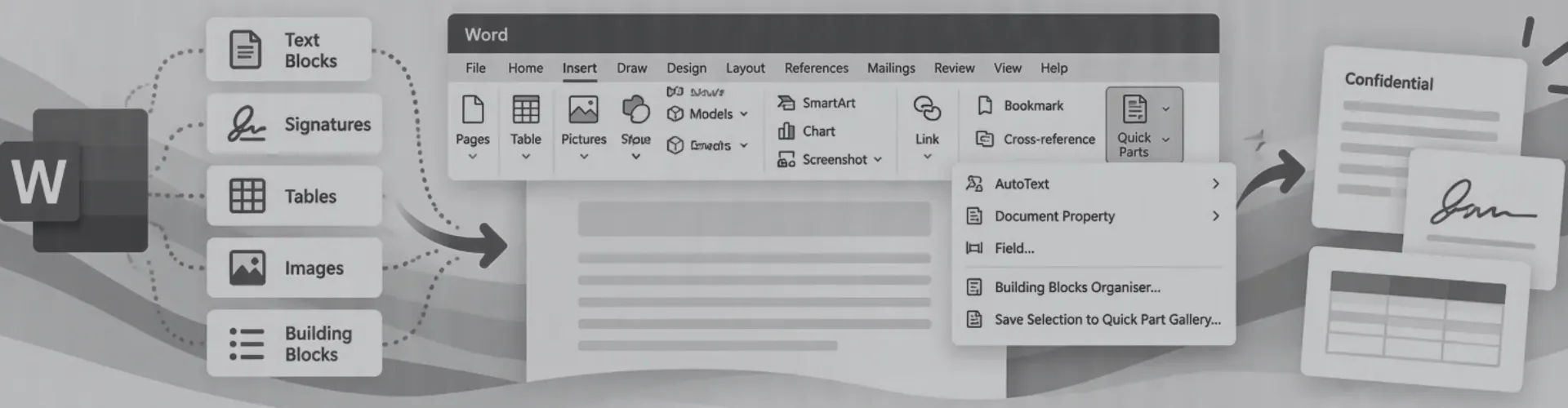
Quick Parts

Word Quick Parts & Building Blocks

Write it once, insert it everywhere.

Most organisations have content that gets retyped, copied from old files or pasted from an email every week: cover pages, standard clauses, disclaimers, signature blocks and pricing tables. Every copy is another chance for outdated wording or broken formatting to end up in front of a client.

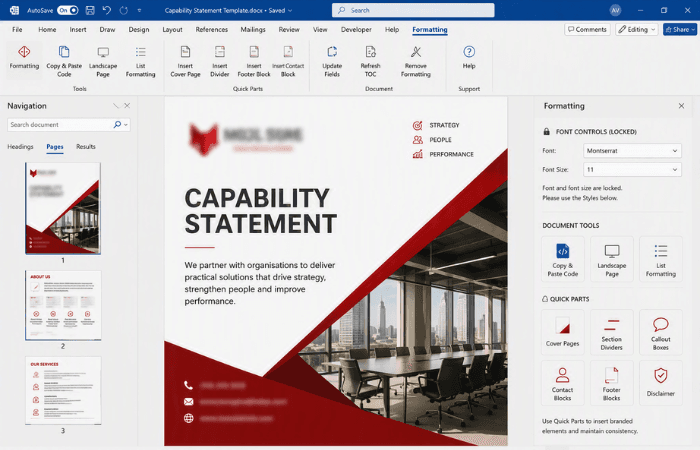
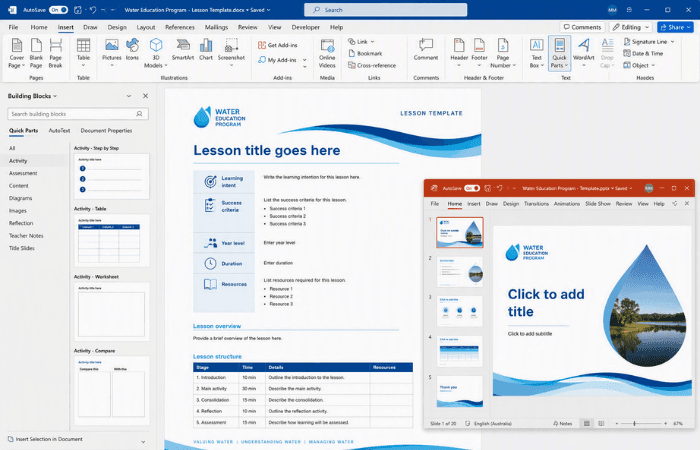
Quick Parts solve that. We build your approved content into reusable building blocks, store them inside your Word document templates and organise them into galleries your team can find in seconds. Insert the block, fill in the details, done.

Since 2000Building Word solutions
25+Programmers Australia-wide
1 clickTo insert approved content

What goes in a gallery

The content your team keeps rebuilding.

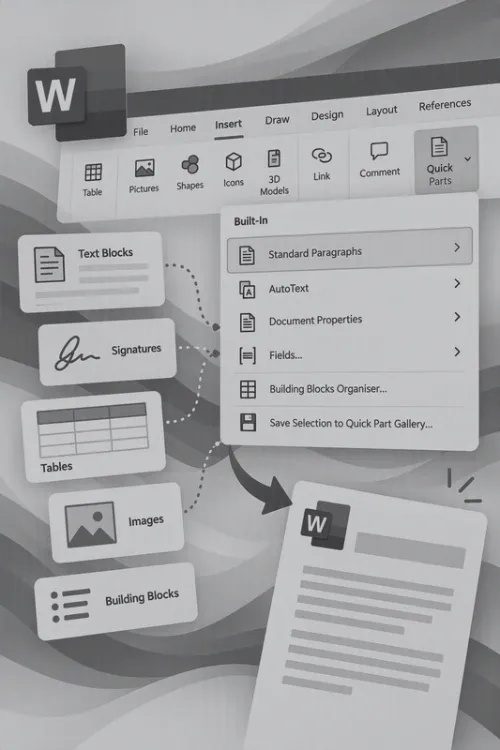
A Quick Parts gallery can hold anything from a single sentence to a multi-page layout. These are the building blocks we create most often.

How Quick Parts work

One menu, five tools.

Quick Parts is the Insert menu in Word that gives access to building blocks, AutoText, document properties and fields. Each does a different job, and a well-built template uses them together.

Quick Parts gallery
Your own reusable blocks, shown as previews at the top of the Quick Parts menu.
Cover pages, clauses, tables and any content staff insert regularly.
AutoText
Text blocks that insert by typing the first few letters of their name and pressing Enter or F3.
Short, frequently typed wording such as disclaimers and sign-offs.
Document Property
Fields linked to the document's properties, such as Title, Company and Author.
Details that repeat throughout a document and update everywhere at once.
Field
Dynamic codes for page numbers, dates, cross-references and calculations.
Content that has to stay accurate as the document changes.
Building Blocks Organizer
The master list of every building block, its gallery, category and storage location.
Managing, renaming and cleaning up a large library.

Where your Quick Parts are saved matters

By default, Word saves new building blocks to the user's own computer. That is why a colleague's Quick Parts never show up for anyone else. We store them where the whole team can reach them.

Single user

Normal.dotm or Building Blocks.dotx

Only works on the computer that saved it. Lost when a PC is replaced.

Team-ready

Your document template

Travels with the template, so everyone creating from it gets the same blocks.

Team-ready

A global template (add-in)

Loads for every user in every document, deployed from a network drive or SharePoint.

Our process

From scattered content to a shared library.

  1. 01

    Audit your documents

    We review the documents your team produces and find the content that keeps being retyped or copied, then confirm the approved version of each.

  2. 02

    Build the blocks properly

    Each block is built on your template styles, with fields, document properties and content controls where details change, so it inserts cleanly every time.

  3. 03

    Organise the galleries

    Clear names, categories and descriptions make blocks easy to find. Larger libraries can sit on their own custom ribbon tab.

  4. 04

    Deploy to the whole team

    Blocks are stored in your template or a global add-in and rolled out from a network drive or SharePoint, so every user gets the same library.

  5. 05

    Train and maintain

    We show staff how to insert and update blocks, and keep the library current when wording, branding or legislation changes.

Going further

Quick Parts work best as part of a system.

On their own, Quick Parts save time. Combined with forms, ribbons and automation, they become the backbone of a document process where staff assemble a complete, on-brand document in minutes.

Case Studies

Some Quick Parts projects we've delivered for clients

2500+ Happy Clients

Read all case studies

Frequently Asked Questions

What are Quick Parts in Microsoft Word?

Quick Parts are reusable content blocks in Word that can be inserted into documents. They help streamline the process of adding frequently-used sections, ensuring consistency and saving time.

How can Quick Parts improve my document workflow?

By using Quick Parts, users can insert commonly-used elements with a few clicks, which reduces repetitive work, maintains document consistency, and improves productivity.

Can I customise the Quick Parts Gallery?

Yes, the Quick Parts Gallery can be customised with various content blocks, such as terms, appendix sections, or prebuilt tables, tailored to your organization’s needs.

What types of content can be stored in Quick Parts?

You can store various types of content, including text, tables, headers, footers, and even images, allowing for flexible and efficient document creation.

How do I get started with Quick Parts for my documents?

Contact our team to discuss how Quick Parts can be integrated into your templates. We’ll help you set up and organize your Quick Parts Gallery to enhance document workflows.

Contact Us

Get in touch with our team for general enquiries and support. We're here to help with any questions you might have about our services.

Need to attach a file?

Need pricing for a specific project? Fill out our quote form and we'll provide you with a detailed estimate tailored to your needs.